
GALAXYGO BUSINESS PORTAL
Run your store
from your computer.
Everything in the GalaxyGo Business app, on a bigger screen. Open the portal in your web browser and sign in with the same account — perfect for the front counter, the kitchen or the back office.
No download needed · Works in Chrome, Edge, Safari and Firefox
ON YOUR DESKTOP
Your whole store, one browser tab.
Live orders
New orders show up in real time. Accept, prep and hand off with clear timers.
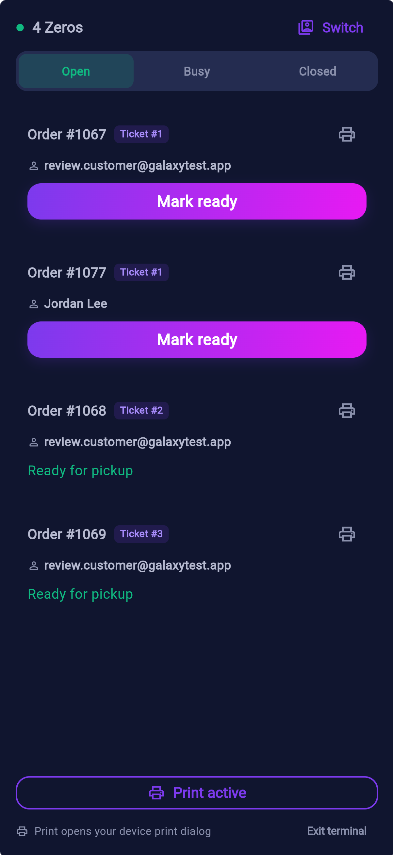
Print kitchen tickets
In terminal mode, print order tickets from your computer's print dialog — any printer works.
Products made easy
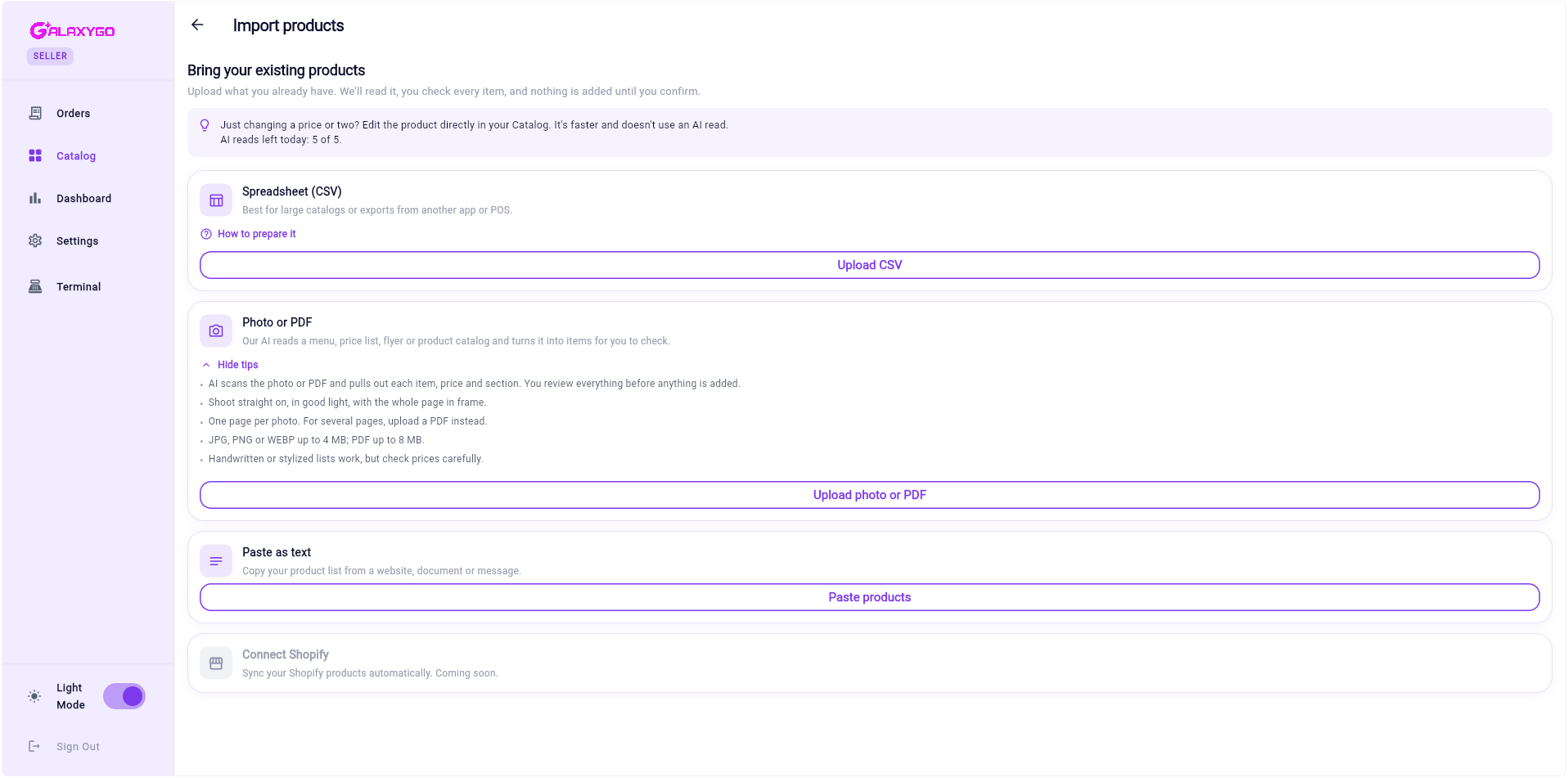
Add products by hand, or import a spreadsheet, photo or PDF of your price list — you review every item first.
Terminal mode for staff
Turn a counter computer into a locked order terminal. Staff clock in with their own PIN.
Sales & payouts
See your sales, reviews and Stripe payouts at a glance on a bigger screen.
Hours & locations
Update store hours, open or close for orders with one click and manage every location.
GET STARTED
Sign in in under a minute.
- Go to seller.galaxygo.app on your computer.
- Sign in with the same email and password you use in the GalaxyGo Business app.
- Bookmark the page or pin the tab so it's always one click away.
- Keep the tab open during business hours so you see new orders right away.
New to GalaxyGo? You can create your business account in the portal or in the Business app.
Keep your account safe
- Always check the address bar shows seller.galaxygo.app before you sign in.
- Give each manager their own login — never share your password.
- On a shared computer, use terminal mode or sign out when you're done.
- GalaxyGo will never ask for your password by email, text or phone.
QUESTIONS
Business portal FAQ
Do I need to download anything?
No. The portal runs in your web browser. We recommend the latest version of Chrome, Edge, Safari or Firefox.
Is it the same account as the mobile app?
Yes. Sign in with the same email and password. Orders, products and settings stay in sync between your computer and your phone.
Can I use the portal and the app at the same time?
Yes. Many stores keep the portal open at the counter and the app on a phone or tablet in the kitchen.
Do I need a special printer?
No. Tickets print through your computer's normal print dialog, so any printer connected to your computer works.
Can my staff use it?
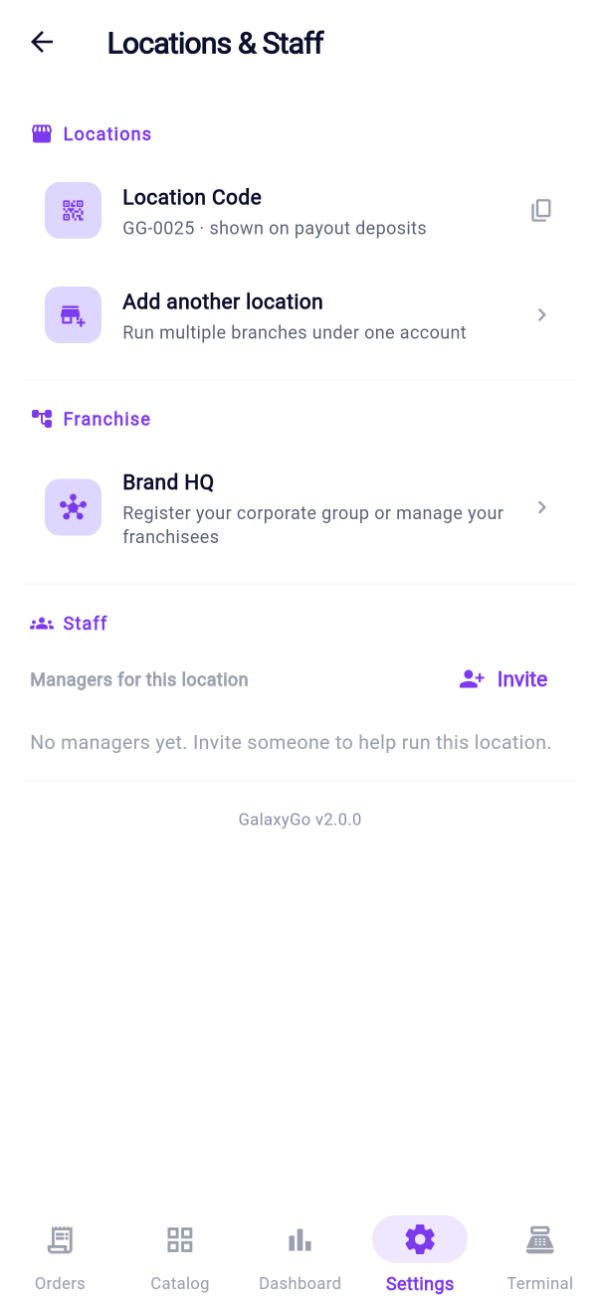
Yes. Invite managers from Settings so they get their own login, or set up a counter computer in terminal mode where staff sign in with a PIN.
I forgot my password. What do I do?
Choose "Forgot password" on the sign-in page and we'll email you a reset link. Still stuck? Write to [email protected].